This guide explains how to connect the computer running Cassini Guidance System to the Leica Proveo 8x surgical microscope.
- Required components
- Computer running Cassini Guidance System
- Leica Proveo 8x surgical microscope with built-in camera module
- Cassini-supplied (75 Ohm, RG59) SDI cables (x2)
- Connection overview
- Use an SDI cable supplied by Cassini Technologies B.V. For video input, connect Proveo 8x SDI LEFT or SDI RIGHT output to Cassini provide computer SDI IN Port 11 or 12.
- For video output, use another SDI cable (provided by Cassini Technologies B.V.) and connect computer SDI OUT port 15 with Proveo 8x SDI IN port.
See Figure 1 for more details.
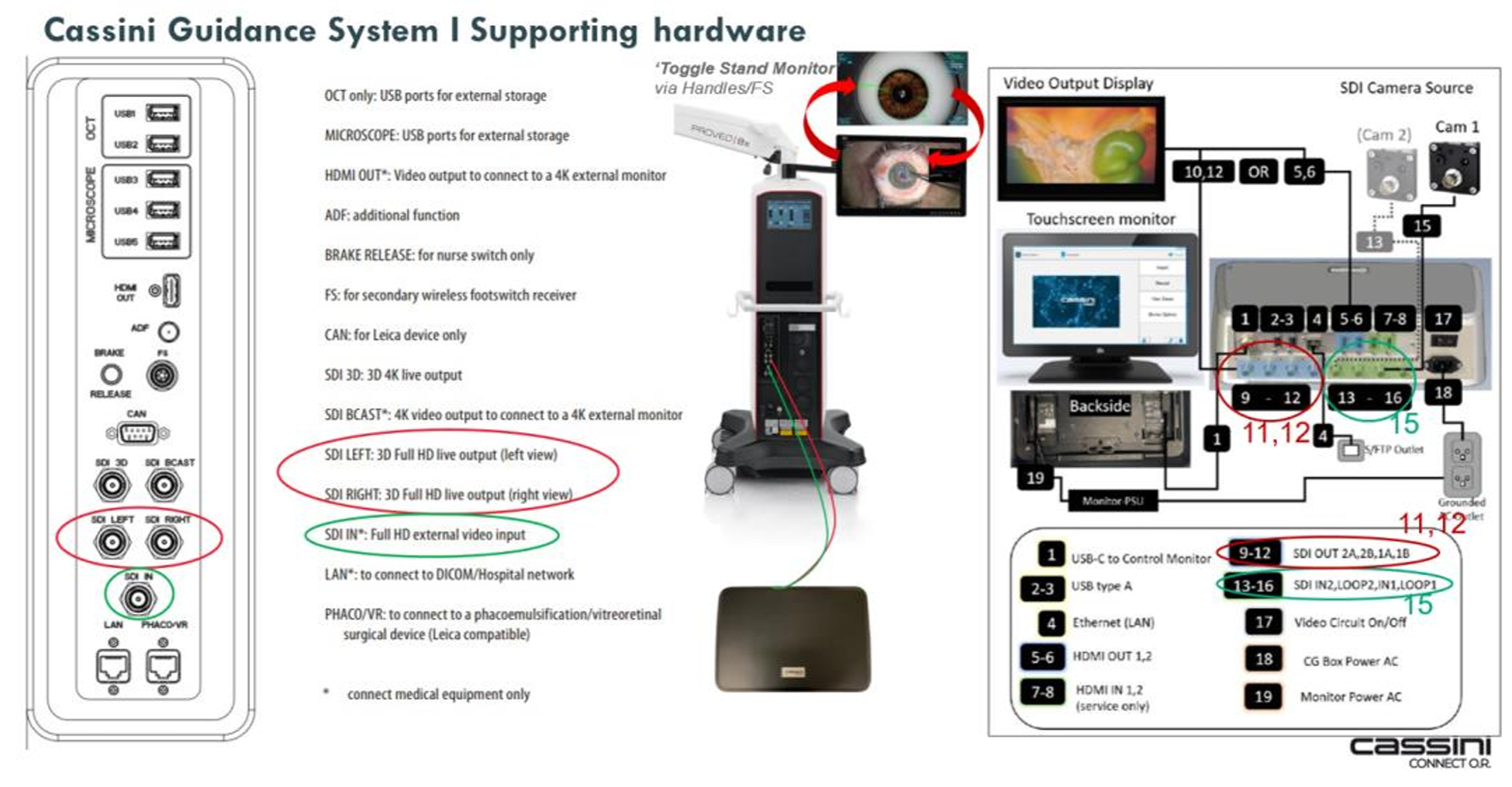 Figure 1. Connectivity between Proveo 8x and Cassini provided computer
3. Display options
When the system (Proveo 8x connected with computer) is set-up (see Figure 1), video output can be viewed on the following:
- Proveo 8x stand monitor (if connected for video output)
- Control monitor provided by Cassini that connects to the backside of the computer via a USB type-C port (providing both video and touch functionality). The video feed is always shown here by default
4. Possible Toggle options
Assign the “Toggle Stand Monitor” function to either:
- The microscope handles, or
- The footswitch.
This lets the user switch the video display between:
- If iOCT not installed: Proveo 8x interface ↔ Cassini Guidance System video output
- If iOCT installed: Proveo 8x interface ↔ Cassini Guidance System video output ↔ EnFocus interface
Please refer to Leica’s User Manual for Proveo 8x Section 9 for more detailed instructions.
NOTE: Only display the Cassini Guidance System video output and overlay on supported monitors (Proveo 8x stand monitor or Cassini monitors). Do not attempt to show the Cassini overlay or video output on 3D monitors or MyVeo headset — these are not supported.
Currently the latest released Guidance software is version v1.1.0.2691. If your software version is different, please contact support for assistance.
For further assistance please contact support@cassini-technologies.com or visit support.cassini-technologies.com to raise an e-ticket.
Was this article helpful?
That’s Great!
Thank you for your feedback
Sorry! We couldn't be helpful
Thank you for your feedback
Feedback sent
We appreciate your effort and will try to fix the article